To properly display this page you need a browser with JavaScript support.
The chat feature enables the user to chat and send studies to other online users or groups of users.
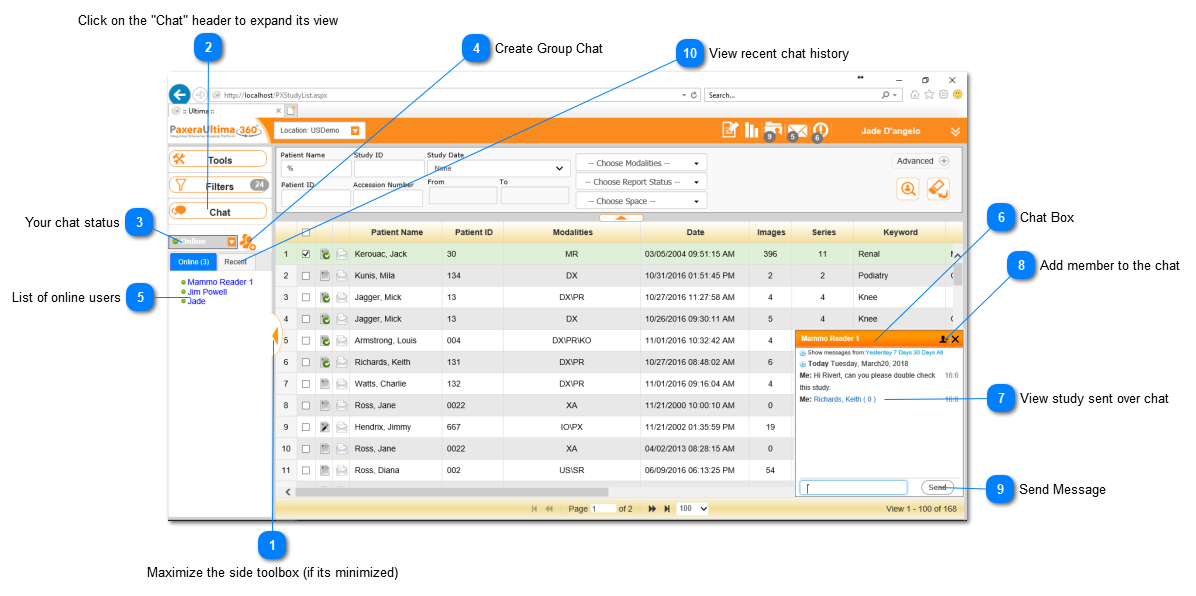
To expand the chat feature, click on the ‘Chat’ button in the bottom left corner of the WorkList screen, as shown below:
Maximize the side toolbox (if its minimized)
Click on the "Chat" header to expand its view
Your chat status
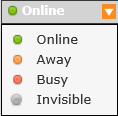
The user can change their Online status to Away, Busy, or Invisible:
Create Group Chat
Create a group chat and share studies with other users that are currently online.
List of online users
Shows a list of users that are logged in and their status (Online / Away / Busy)
Click on any user to start chatting or sharing studies.
Chat Box
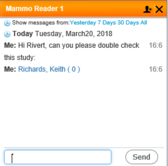
When a user starts a chat with another user, a chat box will appear as shown below:
The user can type in a message and send it, or drag a study from the study WorkList into the chatbox.
Once the study has been sent, it will be shown in blue underline as a link:
View study sent over chat
Send a study by dragging the study from the worklist into the chat box.
Studies are shown in the chat in blue and you can click on it to open it.
Add member to the chat
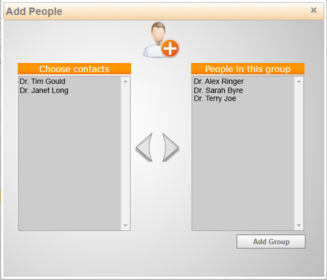
Click to add other online users to the chat (i.e. create a group chat)
A new window will be shown, on the left are the online users and on the right are the users currently part of the group. Click on users from either side and use the appropriate arrows to add / remove users from the group:
Send Message
Type in the message and click 'Send'
View recent chat history
these are two different panels that show the current online useres, and also the users that were recently online.